| Friendly Expert Computer Help - In Plain English | |||
 |
|||

|
|

|
|
|
|||
|
|
|
|
|
| PC911 > How-To > Safe Computing > Backing Up Outlook Express Data |
OE Accounts
Within any identity many e-mail accounts can be set up. These accounts are individual e-mail addresses and include information about the type of e-mail account, username, password, mail server name, and other information to allow you to send and receive e-mail. To back up the account info:
- From the OE main tool bar, go to Tools / Accounts / Mail.
- Select an account to back up by highlighting it.
- Click on the Export option, select a storage location, and click Save.
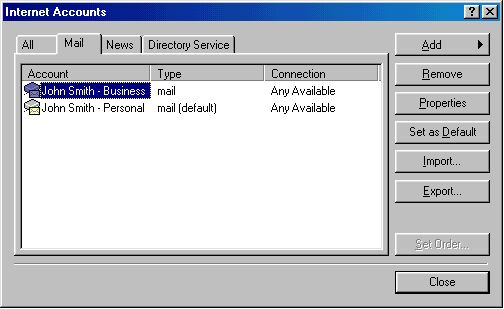 |
Repeat these steps for each account. The file name will be the e-mail account name and will have the extension iaf.
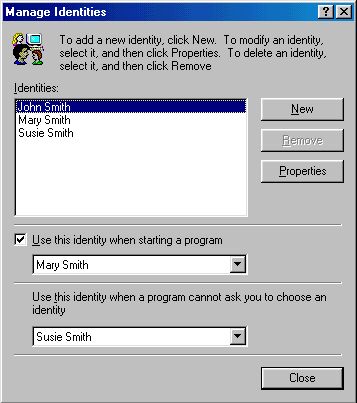
If you have multiple identities, repeat these steps for each additional identity.
 |
OE Folders
OE sets up several default folders for each identity, such as Inbox, Outbox, Deleted Items. These folders, that have the file extension .dbx, are by default stored here: C:\WINDOWS\Application Data\Identities\{GUID}\Microsoft\Outlook Express All your e-mail will be stored in those folders in this directory.
Tip: If you prefer to store the data in a different location, e.g. a different partition or a different hard drive, use these steps.
- In OE, go to Tools / Options / Maintenance / Store Folder.
- Use the Change button to browse to the alternate storage location.
- Highlight the folder, then click OK three times to close the dialog.
- Shut down and restart OE for the change to take effect.
- This is now the new storage location for your OE folders, however, your GUID will still be in the location mentioned above and is still associated with the folders in their new location. Your GUID is also associated with the accounts listed in OE.
To back up these OE folders, open Windows Explorer, locate the folder on your hard drive where you store them, and copy them to your OE backup folder, keeping them organized as discussed above.
Address Book
The Address Book contains the contact information such as e-mail, address, phone number, etc. for all your friends, family, etc. The address book is by default stored here: C:\WINDOWS\Application Data\Microsoft\Address Book\filename.WAB. The address book will always have the file extension .wab, but the file name will either be default.wab or the name of the user that Windows is registered to as shown when you go to Start / Settings / Control / Panel / System / General / Registered to - e.g. John Smith.wab. This info can be found in the registry at HKEY_LOCAL_MACHINE \ Software \ Microsoft \ Windows \ CurrentVersion \ Registered Owner.
To back up your address book, follow these steps:
- From Outlook Express, click on Tools / Address Book, then File / Export / Address Book (WAB). Or from Windows: Start / Programs / Accessories / Address Book / File / Export / Address Book (WAB).
- Choose a storage location and give it a file name.
- Click Save
In addition to having a backup, we also recommend that you keep a current printout of your address book for reasons explained in the next section.
Address Book -- Multiple Identities
The preceding procedure also works for Outlook Express setups with multiple identities, but it's not as simple. When you create multiple identities, each user can see shared addresses (contacts), but each user will only see his personal contacts. However, everything is stored in one file, that is the filename.wab file. When you import the address book, the shared contacts folder will remain the same, but each identity's (user's) unique contacts will be merged. To help sort it out before exporting, each user should print out his/her unique address book, then the unwanted contacts can be easily deleted after the import.
To prevent the merged contacts after a import, Windows can be set up with profiles and passwords so that each user must sign on to Windows. In that case, each user will have his/her own unique address book. However, since using Windows and Outlook Express is an everyday event and importing the address book is probably a rare event, just keep in mind that the address books will merge and not bother with Profiles/Passwords.
Message Rules, Signatures, and OE Settings
WARNING: This section involves editing the registry. Always back up your registry before modifying it.
More items you probably want to back up are message rules, signatures, and OE settings. You can save them all in one step, including customized toolbars, by exporting a few registry keys!
- To get to the registry, click on Start / Run, type regedit and click OK.
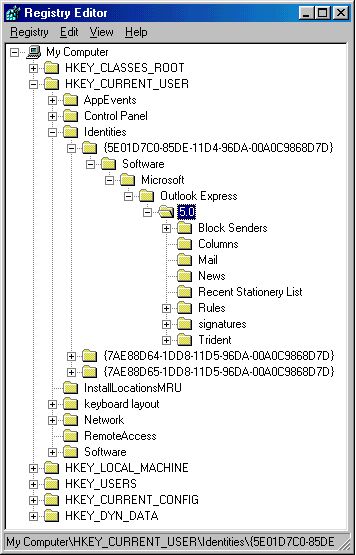
- Navigate to this key: HKEY_CURRENT_USER \ Identities \ {GUID} \ Software \ Microsoft \ Outlook Express \ 5.0
- In the left-hand pane of the registry screen, click on the folder icon labeled 5.0 to expand it. Under this key, you will see many subkeys. The ones that you may want are "blocked senders," "mail," "rules," and "signatures."
- Click on each subkey that you wish to export and on the tool bar at the top, click on Registry / Export Registry File.
- Select a storage location and a file name (Note: the file name must have the extension .reg)
- Repeat this step for each subkey that you wish to save and for all identities.
- Exit the registry by clicking Registry / Exit.
 |
It seems tempting to export the entire "5.0" key, but it will not work when you try to put it back into a new installation of Windows.
|
||
| Back To Top Of Page | ||
|
||
|
[PC911 Home]
[News]
[How-To's]
[Tips & Tweaks]
[Reviews]
[Freeware]
[Best Prices]
[Links] [Search] [About PC911] [Link To PC911] [Support PC911] [Legalese] ©Copyright 1998-2022 PC911 Webmaster |
||