| Friendly Expert Computer Help - In Plain English | |||
 |
|||

|
|

|
|
|
|||
|
|
|
|
|
| PC911 > Reviews > Software > Acronis TrueImage 6.0 |
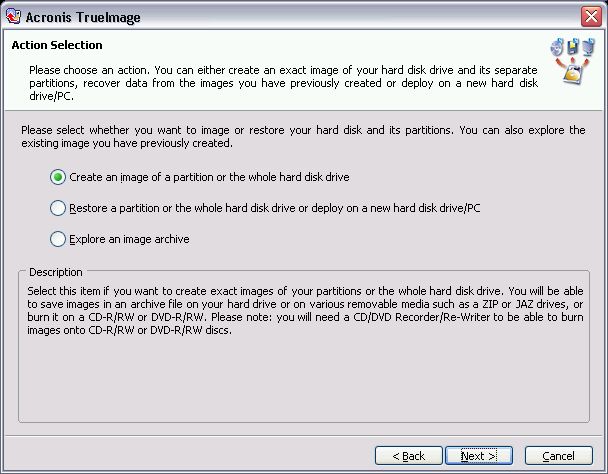
Starting TI6, you will be greeted with the wizard interface, giving you three options to choose from.
 |
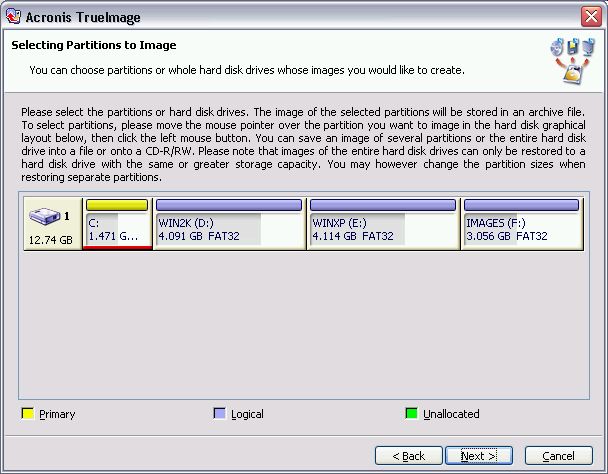
After selecting to create an image, you choose which partition or hard drive to image.
 |
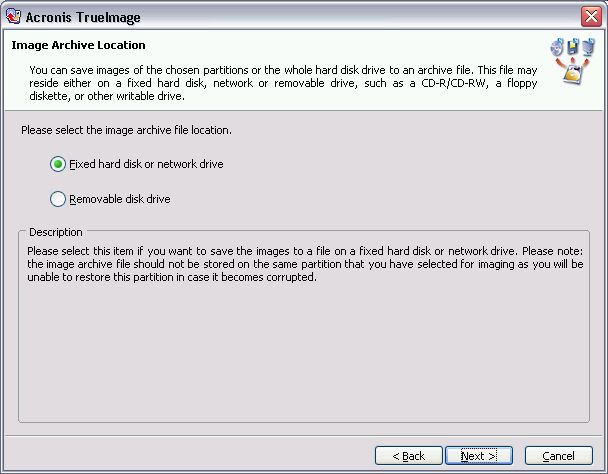
Now choose the type of storage medium for the image file. Fixed hard drive or network drive allows storing the file on a local or network drive, choosing removable drive allows storing the image file on CD-R, CD-RW, DVD-R, or even floppies.
 |
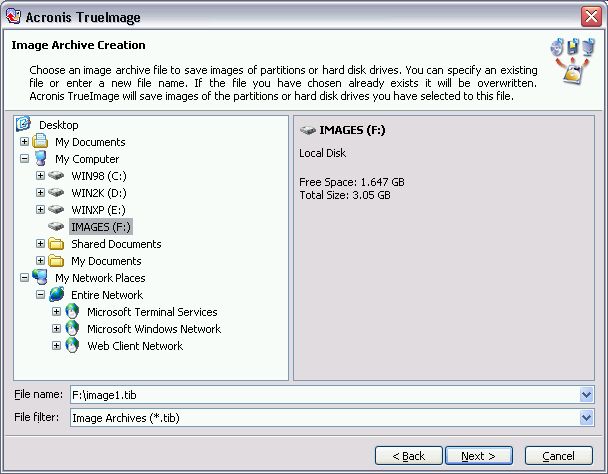
Choose the image file location and name.
 |
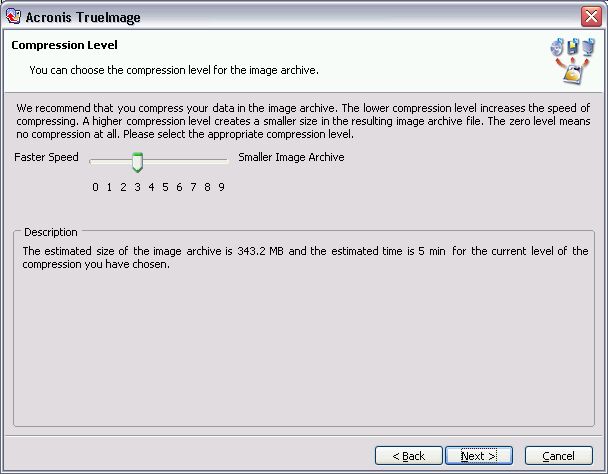
Select the desired compression rate. Moving the slider will update the estimated file size and imaging time to give you a rough idea.
 |
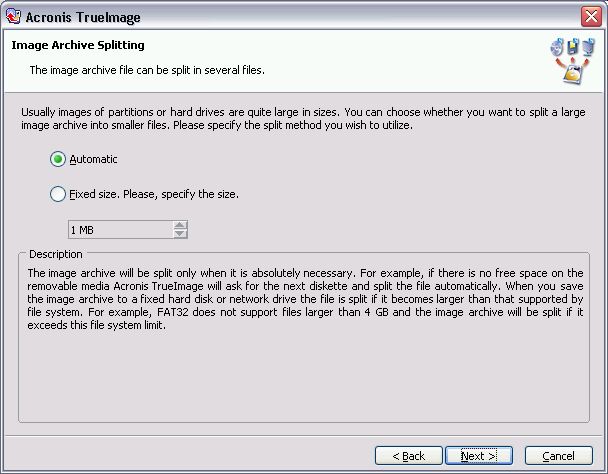
Select if and how you wish to split the image file.
 |
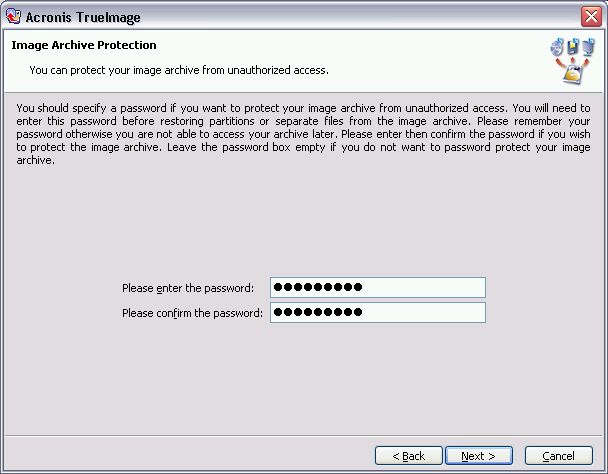
Enter an optional password to protect the image file from unauthorized access. A useful security measure, but not exactly encryption-level protection.
 |
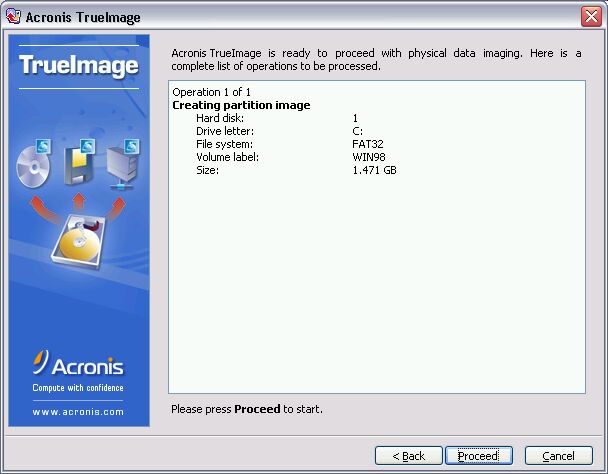
Until now, no operations have been performed yet. Push Proceed to initiate the actual imaging process.
 |
See the current progress and remaining time.
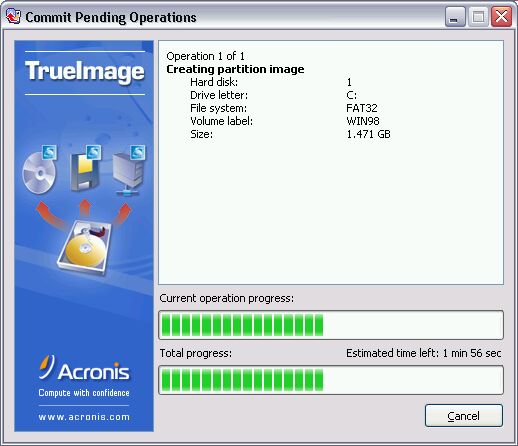 |
As you can see, a very simple process with a very user-friendly interface.
|
||
| Back To Top Of Page | ||
|
||
|
[PC911 Home]
[News]
[How-To's]
[Tips & Tweaks]
[Reviews]
[Freeware]
[Best Prices]
[Links] [Search] [About PC911] [Link To PC911] [Support PC911] [Legalese] ©Copyright 1998-2022 PC911 Webmaster |
||